How to notarize your ID online in Ontario: simple guide

TL;DR:
- Ontario now allows fully legal remote ID notarization via live video, improving accessibility.
- Proper preparation of ID, environment, and understanding the process ensures a successful online session.
- Live video verification, a modified jurat, and technical standards uphold the legal validity of remote notarizations.
Picture this: you need a notarized copy of your passport or driver’s license for a visa application, a legal filing, or a business contract, and you cannot take time off work to drive across town to find a notary. You are not alone. Thousands of Ontarians face this exact situation every year. The good news is that Ontario law now fully supports remote ID notarization through live video, making the process faster, more accessible, and just as legally binding as an in-person appointment. This guide walks you through everything you need, every step to follow, and every mistake to avoid.
Table of Contents
- What you need to notarize your ID online
- Step-by-step: How to notarize your ID via video call
- How remote ID verification works, and why it matters
- Troubleshooting and common mistakes in online ID notarization
- Why online notarization of ID is a game-changer for Ontarians
- Ready to notarize your ID? Find trusted online notary services
- Frequently asked questions
Key Takeaways
| Point | Details |
|---|---|
| Prepare required documents | Have valid ID and unsigned documents ready before starting the online notarization process. |
| Follow the step-by-step process | Join a live video call, verify your ID on camera, and electronically sign as directed. |
| Check for special jurat | Your digital document must include a modified jurat noting remote witnessing for validity in Ontario. |
| Troubleshoot technical issues | Test your tech setup ahead of time to avoid delays and document rejections during notarization. |
What you need to notarize your ID online
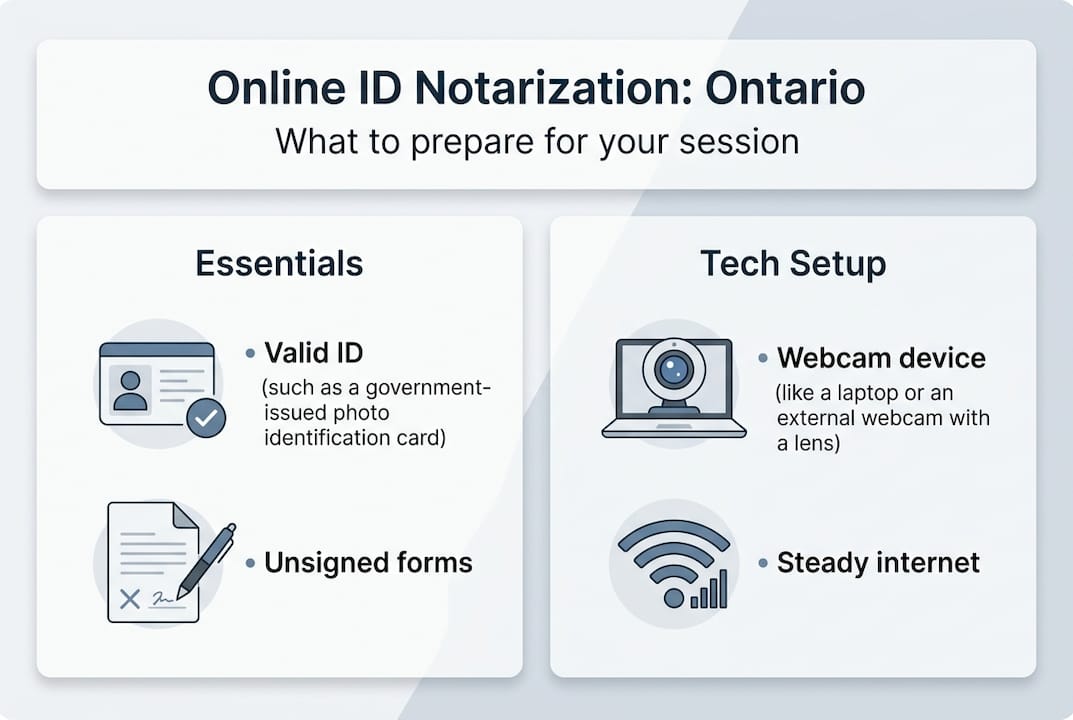
Now that you know help is available, let’s start with what you must have ready before your remote ID notarization. Being unprepared is the single biggest reason people delay or fail their sessions, so treat this section as a pre-flight checklist.
Acceptable forms of ID
Not every piece of identification qualifies for online notarization in Ontario. The most widely accepted documents include:
- Canadian passport (most preferred, easiest to verify on camera)
- Ontario driver’s license (both sides must be clear)
- Canadian Permanent Resident (PR) card
- Canadian citizenship card or certificate
Some providers also accept government-issued photo ID cards, but you should confirm with your specific notary before your appointment. Expired ID is never acceptable, even if only recently expired.
Tech and environment checklist
| Requirement | Details |
|---|---|
| Device | Laptop, desktop, or smartphone with working camera |
| Camera | HD quality preferred; minimum 720p for clear ID capture |
| Microphone | Built-in or external; must transmit clear voice |
| Internet | Stable broadband; 5 Mbps minimum upload speed |
| Browser | Chrome or Firefox recommended for video platforms |
| Privacy | Private room with no third parties present |
| Lighting | Natural or bright overhead light; avoid backlit setups |
Poor lighting and unstable internet are the two most avoidable causes of failed sessions. Test your camera and connection at least 30 minutes before your appointment.

Documents you must prepare
Under O. Reg. 431/20, you must book a video appointment with a licensed commissioner and upload your unsigned document and ID before the session begins. The word “unsigned” matters here. Signing the document before the call removes the legal basis for the notarization because the commissioner must witness your signature in real time.
For most ID notarization requests, you will need:
- A clear digital scan or photo of your government-issued ID
- The unsigned document that references or requires ID verification
- Any supporting letters or forms specified by the requesting organization
Pro Tip: When uploading your ID, place your ID on a dark, flat surface and photograph it under bright, even lighting. This removes shadows and produces a file the notary can legally verify without asking for a retake.
Choosing a licensed Ontario provider
Not everyone offering online notary services is authorized to perform them. In Ontario, commissioners of oaths and notaries public must be licensed under provincial law. When choosing a provider, check that they:
- Are licensed under Ontario legislation
- Use encrypted, compliant video platforms
- Provide a modified jurat (more on this below) on the final document
Start your search by reviewing preparing for online notary so you arrive at the session ready and confident.
Step-by-step: How to notarize your ID via video call
With your materials ready, here’s what happens, step by step, during your remote ID notarization session.
The complete sequence
- Book your appointment online. Choose a date and time through the provider’s scheduling system. Most reputable services offer same-day or next-day slots.
- Upload your unsigned document and ID. Do this at least a few hours before the call so the notary can review your materials ahead of time.
- Join the live video session. Use the link sent to your email. Log in a few minutes early to test your audio and video.
- Verify your identity on camera. The notary will ask you to hold your physical ID up to the camera, matching it against the scanned copy you uploaded. Both your face and the ID must be clearly visible simultaneously.
- Swear or affirm the content of the document. If the document is an affidavit or statutory declaration, you will verbally swear or affirm that its contents are true. This spoken oath is legally significant.
- Digitally sign while being witnessed. The notary will direct you to apply your electronic signature while the video call is active. This is what constitutes witnessed signing.
- Commissioner adds remote jurat and digital seal. The notary then annotates the document with a modified jurat noting that the signing was done remotely, and affixes their digital seal and certificate number.
- Receive your notarized PDF. The final document is delivered to your email, typically within minutes to a few hours.
As O. Reg. 431/20 confirms, the sequence must include live video, real-time ID verification, an oath or affirmation, electronic signing, and the commissioner’s remote jurat and seal before a PDF can be issued.
In-person vs. online: a quick comparison
| Factor | In-person notarization | Online notarization |
|---|---|---|
| Location needed | Notary’s office | Anywhere with internet |
| Turnaround time | Same day if available | Often same day or next day |
| Document delivery | Physical paper | Signed PDF via email |
| ID verification | Shown in person | Shown live on camera |
| Legal validity | Full Ontario validity | Full Ontario validity |
| Flexibility | Office hours only | Often evenings and weekends |
Pro Tip: Before your session, review the detailed Ontario notarization steps so there are no surprises. Knowing exactly what the notary will ask saves time and reduces nerves.
The digital delivery of your notarized PDF means you can forward it instantly to lawyers, embassies, or HR departments without printing or mailing. That speed alone makes secure digital notarization worth considering for any time-sensitive legal matter.
How remote ID verification works, and why it matters
After seeing the steps, it’s useful to know what makes remote ID checks both secure and legally recognized.
Live video as a fraud prevention tool
Live video is not just a convenience feature. It is the legal mechanism that makes remote notarization valid. When you hold your physical ID to the camera while your face is visible, the notary performs a real-time comparison of:
- Your face against the photo on the ID
- The ID details against the uploaded scan
- The expiry date and document integrity
This multi-layer check is actually harder to fake than walking into an office with a document, because the notary sees both you and your ID simultaneously, without any delay for swapping or substituting.
“A live video session for ID verification is not a lesser substitute for an in-person meeting. When done correctly, it is a more auditable, more traceable form of identity confirmation than a quick glance across a desk.”
Why technology quality affects legal validity
Here is something most people do not realize: a blurry video or a frozen screen during the identity check can invalidate the entire session. Under O. Reg. 431/20, live video ID verification requires clear, uninterrupted visual confirmation, and the technology setup directly impacts whether that standard is met. Good tech is not optional. It is a legal requirement by effect.
Key technical standards to meet include:
- Video must be live and synchronous. Pre-recorded video, photos sent via chat, or email attachments do not satisfy the requirement.
- Both parties must be visible and audible. If the notary cannot clearly hear your oath or see your ID, the session must be restarted.
- The connection must be stable throughout the signing. A dropout during the e-signature step could require a full rebooking.
Explore how digital notary security protocols protect your personal data throughout this process.
The modified jurat: the document that makes it official
The “modified jurat” is a specific notation added by the commissioner to confirm that the notarization was conducted remotely. It typically states:
- The notary’s location at the time of signing
- The signer’s location at the time of signing
- The method used (audio-visual technology)
- The platform or software used
Without this notation, the document may be rejected by courts, immigration authorities, or legal institutions, even if the video session went perfectly. This is one of the key details that separates a properly conducted remote notarization from one that looks valid but is not. Learn more about Ontario online notary legalities and what each element of the jurat means for your specific use case.
Troubleshooting and common mistakes in online ID notarization
Even with the best process, small mistakes or technical hiccups can derail your remote notarization. Here are the most common issues and how to avoid them.
The most common mistakes, ranked by frequency
- Submitting a blurry or expired ID scan. This is the number one reason sessions are canceled before they even start. Always zoom in to check image sharpness before uploading.
- Signing the document before the call. If the notary sees your signature already on the document, they cannot legally witness it. The process must begin again with a fresh unsigned copy.
- Missing the live call or joining late. Most providers have a short grace window of 5 to 10 minutes. Missing it means rebooking and potentially a new fee.
- Failing to swear or affirm clearly. A mumbled or incomplete oath may not satisfy the legal standard. Speak clearly and wait for the notary to confirm they heard you.
- Uploading the wrong file format. Some platforms only accept PDF or JPEG. Sending a HEIC file from your iPhone or a TIFF scan may cause upload errors.
Red flags to watch before your session
- Unsupported ID type: Check the provider’s accepted ID list before uploading. Some IDs like foreign passports require additional steps.
- Third parties in the room: The notary may pause or cancel the session if another person appears on screen.
- Incomplete document: A document missing required fields or dates will be flagged and must be corrected before notarization proceeds.
Pro Tip: Under O. Reg. 431/20, a clear camera and a solid tech setup are not just recommended. They are essential for valid live video ID verification. Run a full equipment check the evening before your appointment, not five minutes before.
Quick recovery steps if something goes wrong
- If your ID upload fails, follow the steps for correctly uploading your ID and try a different file format or a brighter photo environment.
- If you miss the call, contact the provider immediately. Most will rebook without an additional charge if you reach out within 24 hours.
- If your connection drops mid-session, rejoin using the same link immediately. The notary will typically wait a few minutes before ending the call.
Using a detailed online notarization checklist before every appointment is the most reliable way to prevent these issues entirely.
Why online notarization of ID is a game-changer for Ontarians
Most people frame online notarization purely as a convenience upgrade, a way to skip the drive to an office. But that undersells what is actually happening here. Ontario’s adoption of remote notarization under O. Reg. 431/20 was not just a pandemic stopgap. It was the beginning of a broader shift in how legal identity verification works for real people.
For small business owners, this matters enormously. Verifying the identity of employees, contractors, or partners used to mean coordinating schedules, losing billable hours, and dealing with physical paperwork. Now it can happen asynchronously, with a legally airtight digital record that is easier to store, retrieve, and share than a paper document ever was.
For individuals, the removal of geographic and scheduling barriers is genuinely transformative. Rural Ontarians, shift workers, parents with young children, and people with mobility limitations all gain equal access to legal services that were previously weighted toward those with flexible schedules and urban addresses.
Ontario is also leading in Canada on this. The regulatory framework here is more developed than most other provinces, meaning notarized documents from Ontario are increasingly recognized nationally and internationally. Following an Ontario remote notarization guide ensures you are working within the most robust legal framework available in the country.
The future points toward even greater integration of digital identity tools with notary services. Ontario is already positioned at the front of that curve.
Ready to notarize your ID? Find trusted online notary services
If you’ve been putting off notarizing your ID because the process seemed unclear or too time-consuming, this guide shows you that it is neither.

The Online Notary makes it simple to complete your ID notarization from anywhere in Ontario, with licensed commissioners available for affidavits, statutory declarations, invitation letters, solemn declarations, and more. Whether you are an individual managing a visa application or a small business owner verifying team credentials, the right support is one click away. Review notary ID requirements for 2026 to make sure you are fully prepared, then explore all available Notary Online Ontario services to book your session today.
Frequently asked questions
What types of ID can be notarized online in Ontario?
Passports, driver’s licenses, and Canadian permanent resident cards are commonly accepted for online ID notarization in Ontario. Under O. Reg. 431/20, ID must be presented and verified during a live video appointment with a licensed commissioner.
Is remote notarization legally valid in Ontario?
Yes, remote notarizations are fully valid in Ontario when the process includes live video ID verification and a modified jurat confirming remote witnessing under provincial regulation.
What happens if my ID upload fails before a notary session?
You will need to re-upload a clear, valid image of your ID before proceeding to your video call, since ID must be uploaded as a required step before the video appointment can proceed.
Can I notarize ID for someone else, such as an employee or family member?
Each individual must personally appear on camera during the live video session, because ID must be verified in real time by the actual person whose identity is being confirmed.